Breakout: The Player Paddle
We'll build the player's paddle, hook it up to keyboard controls, and keep it from moving off-screen.
It's time to give the player some control! In this lesson, we will implement the paddle, the primary way the player interacts with the world of Breakout. We will build upon our entity-component system to create a paddle that moves left and right in response to keyboard input.
We will create a Paddle entity and add components to it. A key focus will be on the InputComponent and PhysicsComponent. We'll explore how to customize the default input bindings, implement a "press to move, release to stop" control scheme, and add a new capability to our physics engine to constrain movement within a defined area.
In this lesson, we will:
- Create a
Paddleentity class. - Bind the left and right arrow keys to paddle movement.
- Implement logic to reset velocity when no key is pressed.
- Add movement constraints to the
PhysicsComponentto keep the paddle on-screen.
Adding a Paddle Class
As usual, let's begin by adding a class to manage our paddle. We'll start with a transform component and image component, and we'll save the transform component pointer to use later.
We'll create this in a new file, Breakout/Paddle.h.
Breakout/Paddle.h
#pragma once
#include "Engine/ECS/Entity.h"
#include "Engine/ECS/TransformComponent.h"
#include "Engine/ECS/ImageComponent.h"
#include "Breakout/BreakoutScene.h"
class Paddle : public Entity {
public:
Paddle(BreakoutScene& Scene) : Entity{Scene} {
Transform = AddComponent<TransformComponent>();
AddComponent<ImageComponent>(
"Assets/Paddle_Frame_B.png"
);
}
private:
TransformComponent* Transform{nullptr};
};Over in our BreakoutScene, let's add an instance of our class to the scene within the Load() method.
Don't forget to include the new header file.
Breakout/src/BreakoutScene.cpp
// ...
#include "Breakout/Paddle.h"
void BreakoutScene::Load(int Level) {
// ...
Entities.emplace_back(
std::make_unique<Paddle>(*this)
);
// ...
}We should now see our paddle at (0,0), which is the top left of our scene. Let's update its position and set up its collider.
Configuring Position and Colliders
Let's set the initial position of our paddle to be near the bottom of the screen. For our paddle image and window size, a position of (5.0, 7.2) seems to work well.
We can also toggle on the DRAW_DEBUG_HELPERS flag to help us position our collider. For our image, a collider size of {3.1, 0.6} seems to match the size of the paddle within the image file.
The image we're using has a transparent area on the left and right, so we also need to use SetOffset() to move the collider to match up with the visual representation of the paddle. Moving it right by 1 meter works for the image we're using:
Breakout/Paddle.h
// ...
#include "Engine/ECS/CollisionComponent.h"
class Paddle : public Entity {
public:
Paddle(BreakoutScene& Scene) : Entity{Scene} {
Transform = AddComponent<TransformComponent>();
Transform->SetPosition({
5.0f * Scene.PIXELS_PER_METER,
7.2f * Scene.PIXELS_PER_METER
});
Collision = AddComponent<CollisionComponent>();
Collision->SetSize(
3.1f * Scene.PIXELS_PER_METER,
0.6f * Scene.PIXELS_PER_METER
);
Collision->SetOffset({
1.f * Scene.PIXELS_PER_METER,
0.f
});
AddComponent<ImageComponent>(
"Assets/Paddle_Frame_B.png"
);
}
private:
TransformComponent* Transform{nullptr};
CollisionComponent* Collision{nullptr};
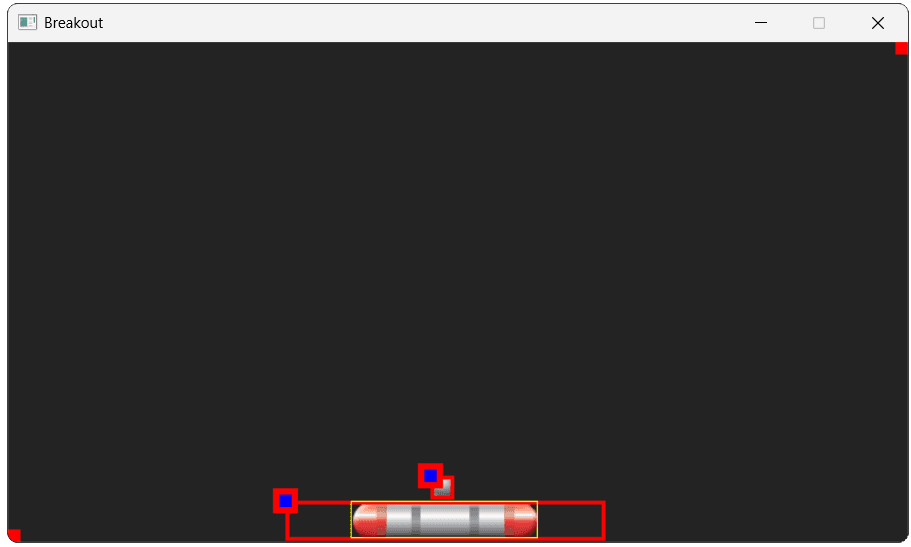
};With these changes, we should now see our paddle in our scene, and our ball is already bouncing off its collider as expected.
Configuring Inputs
Next, let's update our paddle to respond to inputs. We'll add an InputComponent and PhysicsComponent, saving their pointers for later:
Breakout/Paddle.h
// ...
#include "Engine/ECS/InputComponent.h"
#include "Engine/ECS/PhysicsComponent.h"
class Paddle : public Entity {
public:
Paddle(BreakoutScene& Scene) : Entity{Scene} {
// ...
Input = AddComponent<InputComponent>();
Physics = AddComponent<PhysicsComponent>();
Physics->SetGravity({0, 0});
// ...
}
private:
InputComponent* Input{nullptr};
PhysicsComponent* Physics{nullptr};
// ...
};Our base input component automatically binds the left and right arrow keys to horizontal movement, and the space bar to jumping. We'll refine this movement in the next section.
Resetting Velocity
When we press the left or right arrow key, our paddle continues to move in that direction until we press the opposite arrow key. That may be what we want, but let's walk through changing this behavior so the paddle stops when we release the key.
In our physics chapter, we saw an example of simulating forces like friction, which will cause our paddle to slow down over time once we stop providing any movement input.
In this case, we'll simply stop our paddle immediately. To do this, we can override the Tick() function and set the physics component's velocity back to {0, 0}.
We should do this after calling the base Entity::Tick(). If we did it before, our paddle wouldn't move, because we'd remove the velocity before the physics component's Tick() function gets to use it.
Breakout/Paddle.h
// ...
class Paddle : public Entity {
public:
// ...
void Tick(float DeltaTime) override {
Entity::Tick(DeltaTime);
Physics->SetVelocity({0, 0});
}
// ...
};Updating Commands
Let's replace the default left and right key binding with paddle-specific logic. We'll add a config variable controlling how fast our paddle can move in Config.h:
Config.h
// ...
namespace Config::Breakout {
inline const float BALL_SPEED{10};
inline const float PADDLE_SPEED{5};
}
// ...Then, we'll bind our left and right keys to functions that create left and right movement commands. Note that the BindKeyHeld() calls in our constructor happen after the InputComponent's Initialize() method is called by AddComponent(), so these calls are replacing those existing bindings.
Let's overwrite them from our Paddle constructor:
Breakout/Paddle.h
// ...
#include "Config.h"
class Paddle : public Entity {
public:
Paddle(BreakoutScene& Scene) : Entity{Scene} {
// ...
Input = AddComponent<InputComponent>();
Input->BindKeyHeld(
SDLK_LEFT,
CreateMoveLeftCommand
);
Input->BindKeyHeld(
SDLK_RIGHT,
CreateMoveRightCommand
);
// ...
}
// ...
};We'll define these CreateMoveLeftCommand() and CreateMoveRightCommand() functions as static Paddle methods, using our configuration variable to set the horizontal velocity:
Breakout/Paddle.h
// ...
class Paddle : public Entity {
// ...
private:
static CommandPtr CreateMoveLeftCommand() {
using namespace Config::Breakout;
return std::make_unique<MovementCommand>(
Vec2{
-PADDLE_SPEED * Scene::PIXELS_PER_METER,
0.0
}
);
}
static CommandPtr CreateMoveRightCommand() {
using namespace Config::Breakout;
return std::make_unique<MovementCommand>(
Vec2{
PADDLE_SPEED * Scene::PIXELS_PER_METER,
0.0
}
);
}
// ...
};Advanced: Lambda Expressions
A more succinct way to provide these bindings is to use a . Lambdas allow us to provide inline functions within the body of other functions, such as our Paddle constructor.
If a function is short and only going to be used in a single place, providing it as a lambda often makes our code easier to follow than defining the logic elsewhere in the file.
The lambda approach would look like this:
Breakout/Paddle.h
// ...
class Paddle : public Entity {
public:
Paddle(BreakoutScene& Scene) : Entity{Scene} {
using namespace Config::Breakout;
// ...
Input = AddComponent<InputComponent>();
Input->BindKeyHeld(SDLK_LEFT, []{
return std::make_unique<MovementCommand>(
Vec2{
-PADDLE_SPEED * Scene::PIXELS_PER_METER,
0.0
}
);
});
Input->BindKeyHeld(SDLK_RIGHT, []{
return std::make_unique<MovementCommand>(
Vec2{
PADDLE_SPEED * Scene::PIXELS_PER_METER,
0.0
}
);
});
// ...
}
// ...
};Unbinding Keys
We can now control the left and right movement of our paddle, but the default InputComponent setup is also causing our paddle to jump when the space key is pressed. We don't need this.
It'd be reasonable to simply delete that binding from the InputComponent::Initialize() function but, for the sake of learning and future flexibility, let's give our InputComponent the ability to unbind keys dynamically.
We'll add a public UnbindKey() method that accepts the key code we want to unbind. The function will then remove that binding from both of the binding maps, using the erase() method on their std::unordered_map:
Engine/ECS/InputComponent.h
// ...
class InputComponent : public Component {
public:
// ...
void UnbindKey(SDL_Keycode Key) {
KeyDownBindings.erase(Key);
KeyHeldBindings.erase(Key);
}
// ...
};In our Paddle constructor, we can now unbind the spacebar, preventing any jumping:
Breakout/Paddle.h
// ...
class Paddle : public Entity {
public:
Paddle(BreakoutScene& Scene) : Entity{Scene} {
// ...
Input = AddComponent<InputComponent>();
Input->UnbindKey(SDLK_SPACE);
// ...
}
// ...
};Advanced: Game-Specific Components
Components do not always need to be generic. It can be helpful to add game-specific components to remove complexity from our entity types, or to define behaviors that are useful across multiple entities.
These components can also inherit from base components if doing so would be useful. Below, we derive from InputComponent to create a component that can be used to encapsulate our paddle input logic.
We override the base Initialize() method to provide the keybindings we need for our paddle:
Breakout/PaddleInputComponent.h
#pragma once
#include "Engine/ECS/InputComponent.h"
#include "Engine/Scene.h"
#include "Config.h"
class PaddleInputComponent : public InputComponent {
public:
// Inherit constructors
using InputComponent::InputComponent;
using namespace Config::Breakout;
void Initialize() override {
BindKeyHeld(SDLK_LEFT, [] {
return std::make_unique<MovementCommand>(
Vec2{
-PADDLE_SPEED * Scene::PIXELS_PER_METER,
0.0
});
}
);
BindKeyHeld(SDLK_RIGHT, [] {
return std::make_unique<MovementCommand>(
Vec2{
PADDLE_SPEED * Scene::PIXELS_PER_METER,
0.0
});
}
);
}
};This allows us to remove a lot of code from our Paddle class, helping keep things organized:
Breakout/Paddle.h
// ...
#include "Engine/ECS/InputComponent.h"
#include "Breakout/PaddleInputComponent.h"
class Paddle : public Entity {
public:
Paddle(BreakoutScene& Scene) : Entity{Scene} {
// ...
Input = AddComponent<PaddleInputComponent>();
Input->UnbindKey(SDLK_SPACE);
Input->BindKeyHeld(SDLK_LEFT, /*...*/);
Input->BindKeyHeld(SDLK_RIGHT, /*...*/);
// ...
}
private:
// ...
InputComponent* Input{nullptr};
PaddleInputComponent* Input{nullptr};
};Constraining Movement
The final problem we have with our paddle's input is that it can move completely off the screen. Let's constrain its horizontal motion.
Constraining motion is a generally useful capability, so we'll implement some of it in the PhysicsComponent so it can be reused in the future.
We'll add a ConstrainHorizontalMovement() function that accepts the left and right edge, as well as three member variables to support this behavior:
Engine/ECS/PhysicsComponent.h
// ...
class PhysicsComponent : public Component {
public:
// ...
void ConstrainHorizontalMovement(
float Left, float Right
) {
ShouldConstrainHorizontalMovement = true;
ConstrainLeft = Left;
ConstrainRight = Right;
}
private:
// ...
bool ShouldConstrainHorizontalMovement{false};
float ConstrainLeft{0.0f};
float ConstrainRight{0.0f};
};In our Tick() function, if the constraint is enabled and our velocity causes the entity to move beyond those bounds, we'll snap it back. We do this after updating the position so we can catch any overshoot.
Engine/ECS/src/PhysicsComponent.cpp
// ...
void PhysicsComponent::Tick(float DeltaTime) {
ApplyForce(Gravity * Mass);
Velocity += Acceleration * DeltaTime;
SetOwnerPosition(
GetOwnerPosition() + Velocity * DeltaTime
);
Acceleration = {0.0, 0.0};
if (ShouldConstrainHorizontalMovement) {
auto [x, y]{GetOwnerPosition()};
if (x < ConstrainLeft) {
SetOwnerPosition({ConstrainLeft, y});
} else if (x > ConstrainRight) {
SetOwnerPosition({ConstrainRight, y});
}
}
}
// ...Back in our Paddle constructor, we'll set the constraints such that our collider stays within the bounds of our scene.
To help with this, we'll do a minor refactor to create CollisionWidth and CollisionOffsetX variables, so they can be used as arguments for both our existing collision setup and our new ConstrainHorizontalMovement() call.
The left limit is simply the negative of the offset (so when x is that value, the collider's left edge is at 0). The right limit ensures the collider's right edge stops at the screen width.
Breakout/Paddle.h
// ...
class Paddle : public Entity {
public:
Paddle(BreakoutScene& Scene) : Entity{Scene} {
// ...
float CollisionWidth{3.1f * Scene.PIXELS_PER_METER};
float CollisionOffsetX{1.f * Scene.PIXELS_PER_METER};
Physics = AddComponent<PhysicsComponent>();
Physics->SetGravity({0, 0});
Physics->ConstrainHorizontalMovement(
-CollisionOffsetX,
Scene.GetWidth() - (
CollisionOffsetX + CollisionWidth
)
);
Collision = AddComponent<CollisionComponent>();
Collision->SetSize(
CollisionWidth,
0.6f * Scene.PIXELS_PER_METER
);
Collision->SetOffset({CollisionOffsetX, 0});
// ...
}
// ...
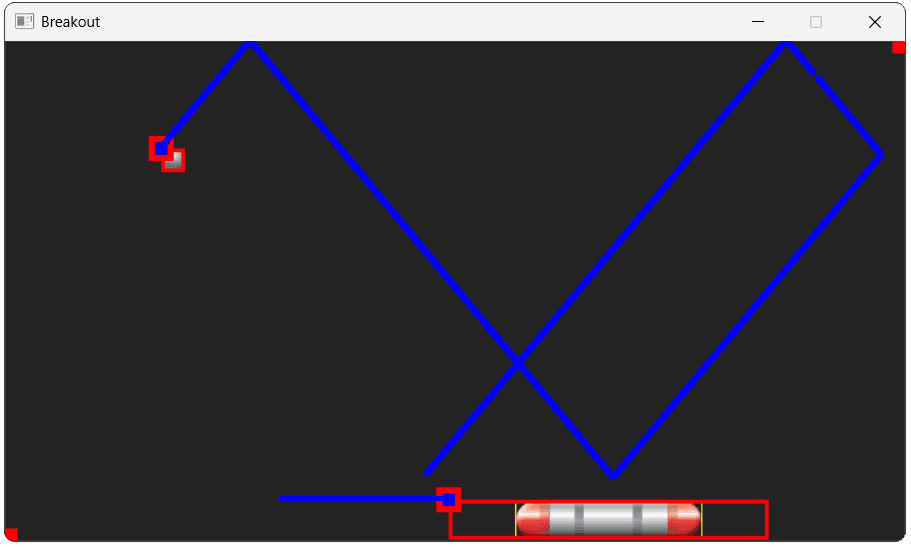
};With those changes in place, we should now be able to move our paddle within our window, but not beyond its bounds. Our ball should also bounce off our paddle correctly:
Complete Code
Our updated code is provided below:
Files
Summary
We've now added player control to our game by creating the paddle. This involved creating the Paddle entity, configuring its components, and writing the logic for its input and movement.
We customized the default keybindings, created a "release-to-stop" movement feel, and ensured the paddle can't leave the play area.
Here's an overview:
- We created a
Paddleentity and added it to our scene. - We learned to override default input bindings and unbind keys we don't need.
- We implemented a velocity reset in the
Paddle::Tick()function for responsive controls. - We added a reusable movement constraint feature to our
PhysicsComponent. - The player can now move the paddle to hit the ball.
Breakout: Improving Paddle Physics
We'll add detailed collision logic to the paddle, giving the player control over the ball's trajectory.